Drawing a black box over a name
hides it from your eyes and nobody else's. This page covers the real
methods — Adobe Acrobat Pro, Preview on a Mac, and what to do without
either — what each one leaves behind, and how DokMine removes the text
from the content stream and still hands back a PDF.
Free tier · no card needed · files removed after processing.
The short answer
Never draw a shape over the text. A PDF stores text
as text; a rectangle is one more drawing instruction painted on top
of it. Use a tool that deletes the glyphs: Acrobat Pro's
Redact tool, Preview's Redact tool on a
Mac, or DokMine. Then clean the metadata, annotations, form fields
and attachments separately — none of those live on the page, and a
page-only pass leaves every one of them intact.
Then verify. Open the finished file, try to select text over the
marks, and search for the value you removed.
Why a black box is not a redaction
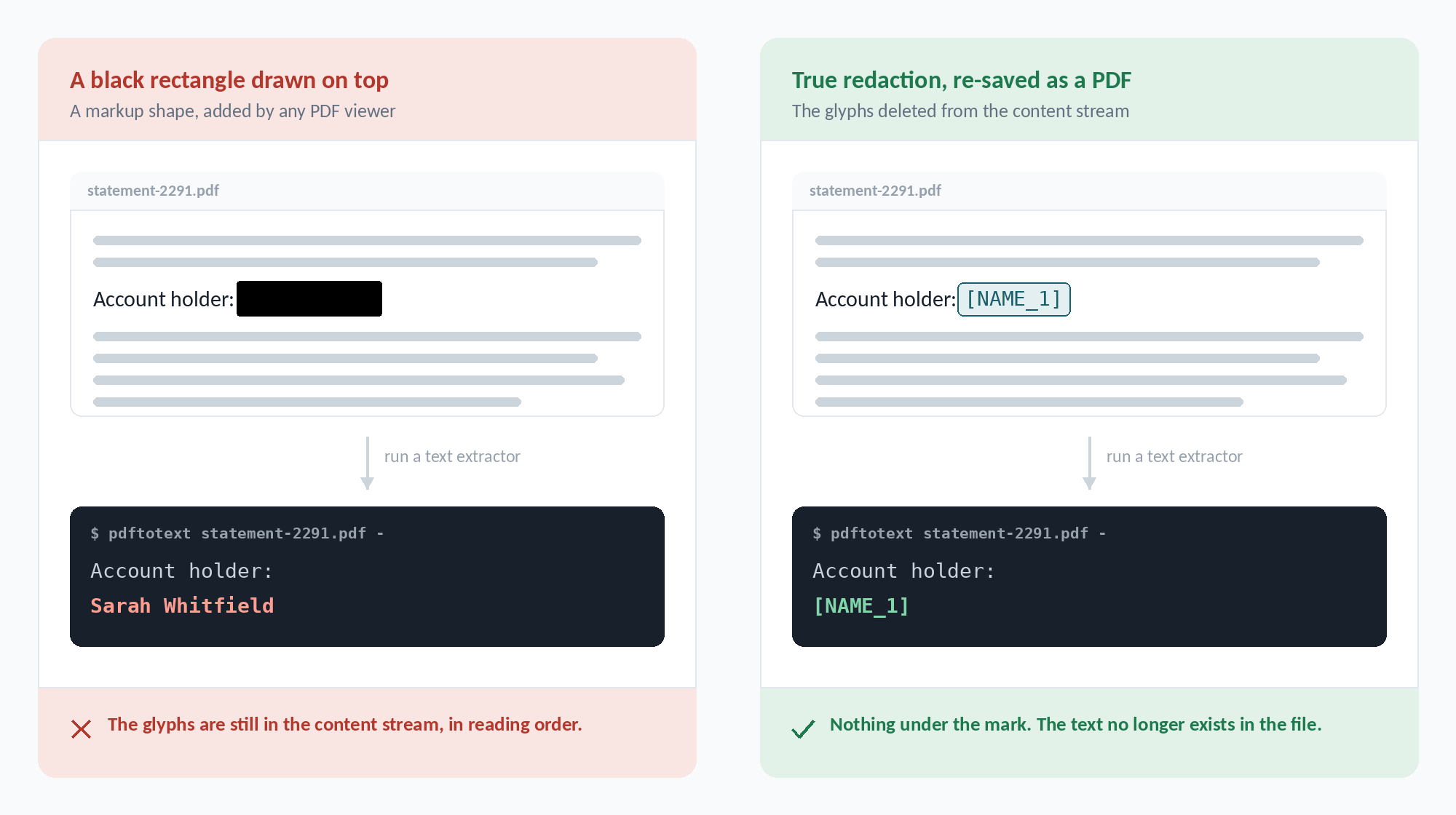
A PDF is not a picture of a page. It is a content stream of drawing
instructions, and the text sits in that stream as text, in reading
order. When a markup tool draws a filled rectangle over a name, it
appends one more instruction after the glyphs. The name is still there
and still selectable. Copy and paste from the "redacted" area, run
pdftotext over the file, or open it in almost any editor,
and it comes straight back out.
This is the single most common way documents leak. It has produced
published court filings with witness names recoverable by dragging the
cursor, and public-records releases where the redactions lifted off
with a click. The document looked correct on screen every time.
A rectangle is painted after the glyphs, not instead of them.
Any text extractor walks straight past it.
How to redact a PDF in Adobe Acrobat Pro
Acrobat Pro has a genuine redaction tool. The free Acrobat Reader does
not — which is a large part of why so many people reach for a shape
instead. If you have the Pro licence, this is the reliable route.
1. Open the Redact tool
All tools ▸ Redact a PDF. Before you start, use
Set properties if you want to control how the marks
look — a black fill, or overlay text such as [REDACTED]
in the gap.
2. Mark the content, and use Find Text
Mark for Redaction offers Text & Images, Pages,
and Find Text. Use Find Text. Marking by eye means
you catch what you happen to notice; searching means you catch every
occurrence of a value across every page, including the one in the
footer of page 40. Search for each form separately: full name, surname
alone, initials, the email address, the account number with and
without separators.
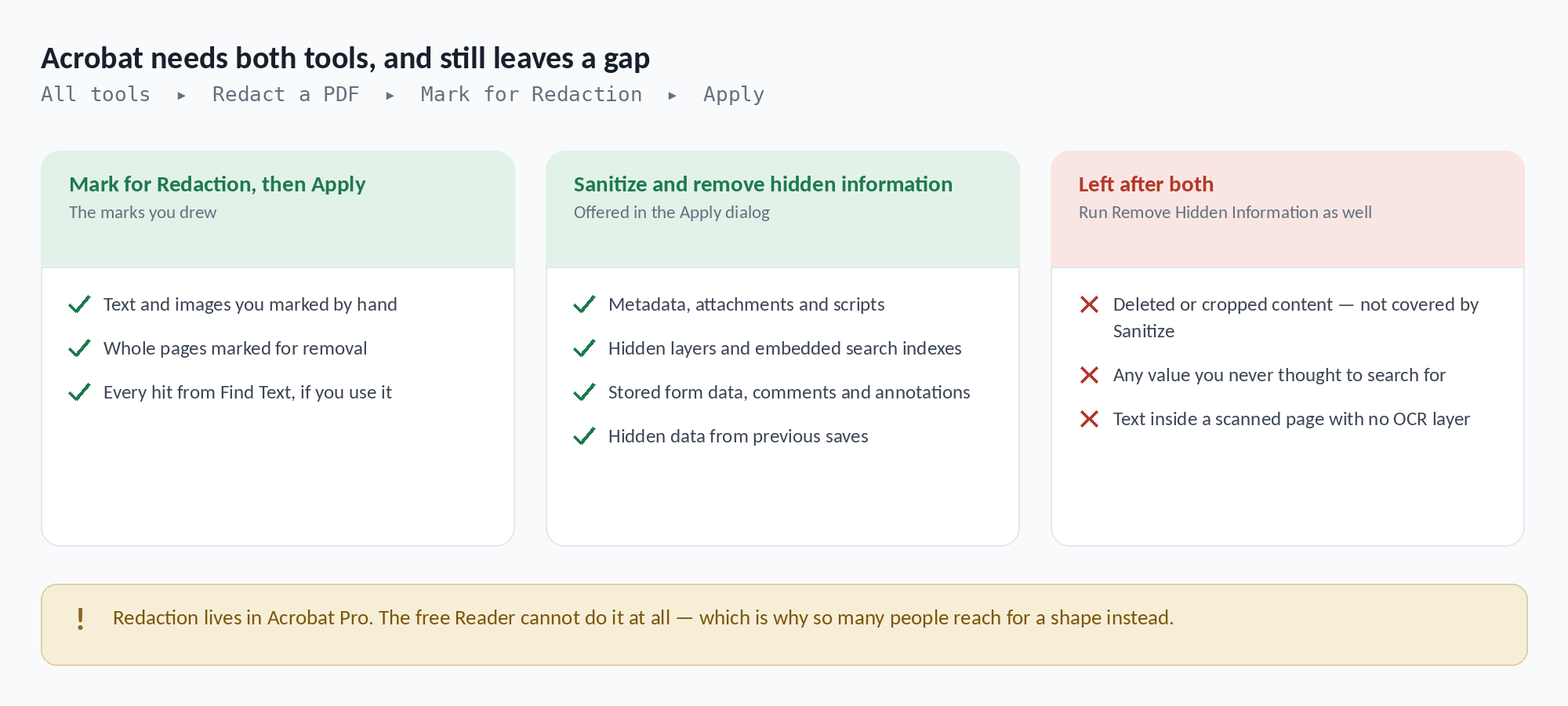
3. Apply, with Sanitize turned on
Apply is what actually deletes the marked content —
until then the marks are only marks. The Apply dialog offers
Sanitize and remove hidden information. Turn it on.
It clears metadata, embedded attachments, scripts, hidden layers,
embedded search indexes, stored form data, comments and annotations,
and hidden data left behind by previous saves.
4. Run Remove Hidden Information as well
Sanitize is not a superset. Notably it does not cover
deleted or cropped content — the material a PDF keeps
when a page was cropped or an image was removed, which is still sitting
in the file. That category appears only under Remove Hidden
Information, so run that separately and review what it finds.
5. Save as a new file, then verify
Acrobat appends _Redacted to the filename. Keep the
original somewhere safe, then open the new file and try to select text
over each mark. Search the document for the values you removed. If
anything is still selectable, the redaction was never applied.
Two separate Acrobat tools, and a gap between them. Deleted and
cropped content is not covered by Sanitize.
How to redact a PDF on a Mac without Acrobat
Preview has had a real Redact tool since macOS Big Sur. Open the PDF,
then Tools ▸ Redact, or show the Markup toolbar with
⇧⌘A and pick the Redact button. Drag across the text; it
blacks out immediately. The content is removed when you save.
Preview is explicit about the difference, and it is worth reading the
warnings rather than dismissing them. Pick a shape from the Markup
toolbar and it tells you the content behind the annotation will not be
deleted. Pick Redact and it tells you the content is permanently
removed. Those two dialogs are the whole lesson of this page.
What Preview will not do: clean document metadata, strip embedded
attachments, clear form field values, or show you a report of what it
found. It redacts what you drag over, and nothing else. For a short
document with one name on it that is enough. For a batch, or a file
with comments and form data in it, it is not.
Where a PDF keeps a second copy
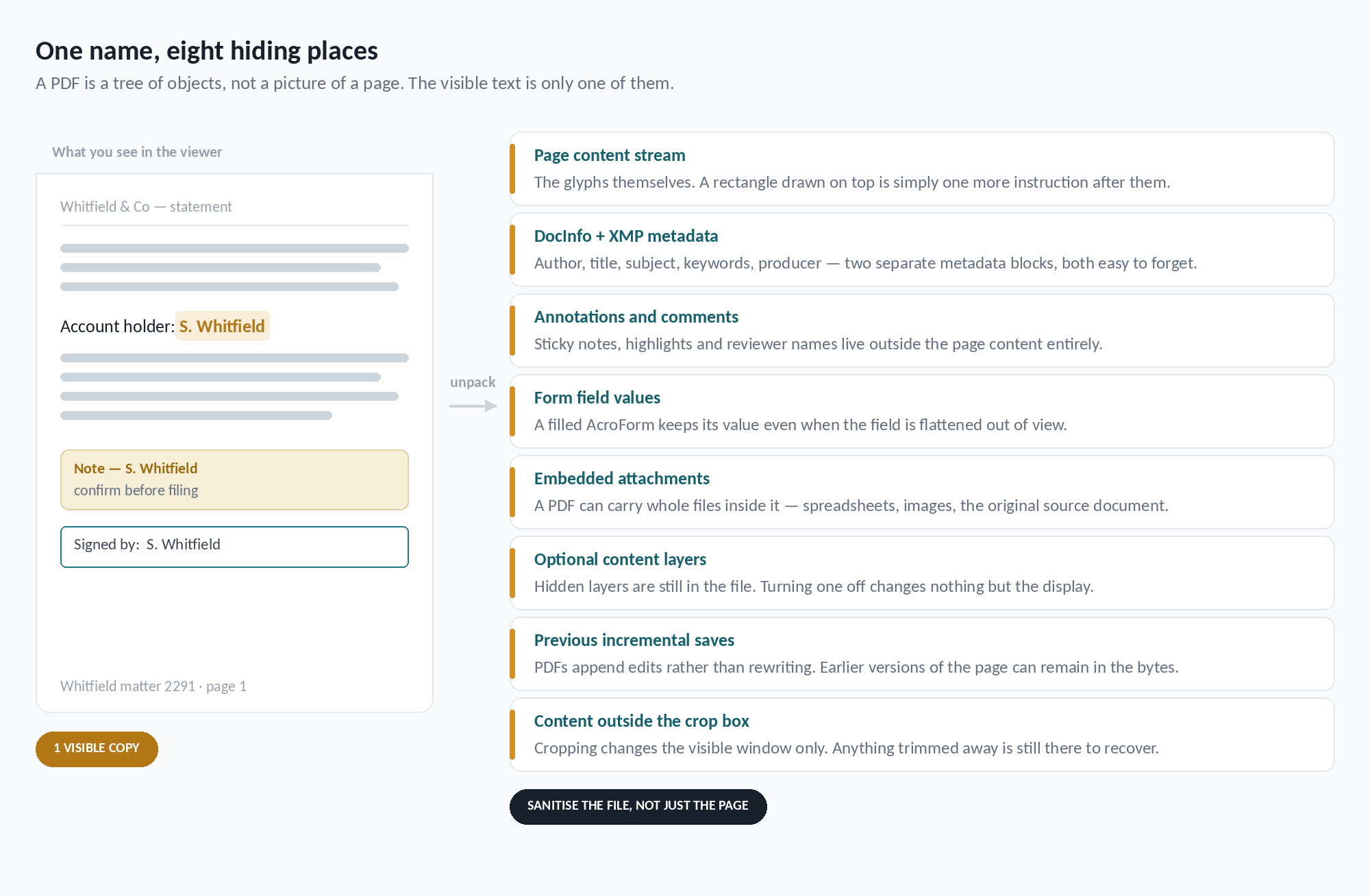
The reason a page-only pass is not enough is that the page is one
object among many. A PDF is a tree of objects, and personal data has
at least eight places to survive in.
Cropping, hiding a layer and covering text all change what is
displayed. None of them change what is stored.
Two metadata blocks, not one. The DocInfo dictionary and the XMP packet both carry author, title, subject and keywords, and clearing one does not clear the other.
Annotations and comments. Sticky notes, highlights and reviewer names sit outside the page content entirely and survive any body-only pass.
Form field values. A filled AcroForm keeps its value in the field object even when the field is no longer visible.
Embedded attachments. A PDF can carry entire files inside it — including, quite often, the source document it was generated from.
Optional content layers. Switching a layer off changes the display and nothing else.
Previous incremental saves. PDFs append revisions rather than rewriting the file, so earlier states of a page can remain in the bytes.
Content outside the crop box. Cropping narrows the visible window. Everything trimmed away is still recoverable.
Scanned pages and pasted screenshots. Text drawn as pixels is invisible to every text search, and to every Find-and-mark workflow above.
The methods compared
Six ways people redact a PDF, and what each one actually leaves in the
file.
Method
What it removes
What survives
Still a real PDF?
Black rectangle or highlight
Nothing. It is a drawing instruction on top.
Every glyph, in reading order, selectable by anyone.
Yes
Acrobat Pro — Redact and Apply
The marked text and images, properly.
Metadata, attachments, form data and layers, unless you sanitize too.
Yes
Acrobat Pro — plus Sanitize and Remove Hidden Information
Nearly everything, across two separate passes.
Whatever you never searched for; text in un-OCR'd scans.
Yes
Preview on macOS — Redact tool
The content you drag over.
Metadata, attachments, form values, annotations.
Yes
Flatten every page to an image
The text layer — all of it.
Document metadata. And you lose search, selection and accessibility.
Not usefully
DokMine
Matches across the content stream, metadata, annotations and embedded images, in one pass.
Whatever automated detection misses — which is why you still review it.
Yes
Can you redact a PDF for free?
Partly. On a Mac, Preview does true redaction at no cost, with the
limits above. On Windows there is no equivalent built in — Acrobat
Reader cannot redact, and the shape tools that look like they can are
exactly the trap this page is about.
DokMine has a free tier with a daily quota and no card required, which
covers the occasional document. Whatever you use, be careful with
browser-based tools that ask you to upload a sensitive file: check what
happens to it afterwards before you hand it over.
How DokMine redacts a PDF
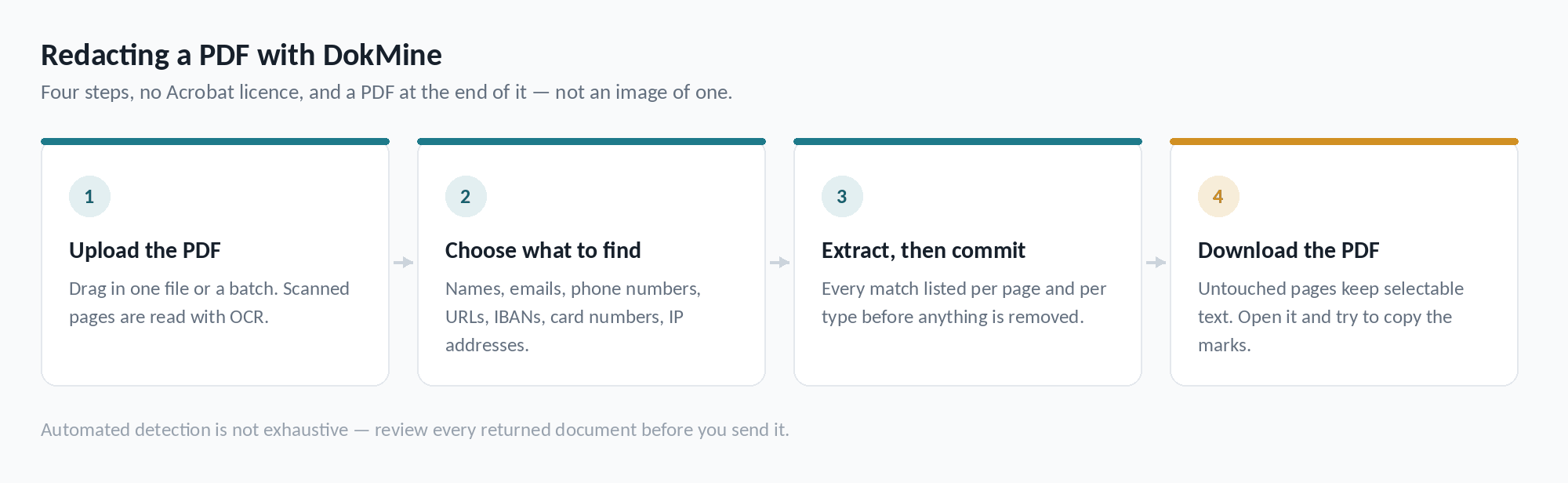
DokMine applies true redaction. Where a match is found the text is
removed from the content stream and the region is covered — the glyphs
are not painted over, they are taken out. The result is a PDF, not an
image of one: pages that were not touched keep their selectable text,
their structure and their fonts.
You choose how removed values are represented. Blackout
leaves a solid bar. Tokens substitute a typed
placeholder — [EMAIL_1], [PHONE_2] — with the
same value mapping to the same token throughout, so a redacted contract
still reads as a contract and you can still tell that two mentions
referred to the same party.
The pass covers document metadata, annotations, form fields and
bookmarks alongside the page content, and runs OCR over embedded images
so a name inside a pasted screenshot is blacked out in the image data
itself. If DokMine cannot read an image, it says so rather than handing
the file back as though it had been checked — the
OCR guide covers that
case in more detail.
Extraction runs before redaction, so you see every match listed
per page and per type before anything is removed.
Check the result — every time
No automated detector is exhaustive, and PDFs are the format most
likely to defeat one: skewed scans, unusual fonts, text split across
drawing operations, handwriting, tables reconstructed from absolute
positions. Names in particular are ambiguous by nature and will never
be caught reliably by any tool, DokMine included.
Treat the output as a strong first pass. Open the redacted PDF, read
it, and try selecting text over the redacted regions. DokMine does not
guarantee complete detection or removal — the review is yours.
Questions
How do I redact a PDF properly?
Use a tool that deletes the text rather than covering it: Acrobat Pro's Redact tool, Preview's Redact tool on macOS, or DokMine. Then clear metadata, annotations, form field values and attachments separately, since none of those live on the page. Finally, open the saved file and try to select text over each mark.
Why can I still copy text from under a black box?
Because the box is a drawing instruction added after the text, not a replacement for it. PDFs store glyphs in a content stream in reading order, and a shape painted on top leaves that stream untouched. Selecting, copying or running a text extractor returns the original.
Can Adobe Acrobat Reader redact a PDF?
No. Redaction is an Acrobat Pro feature. The free Reader can add shapes and highlights, but those only cover content — which is exactly how most accidental disclosures happen.
How do I redact a PDF for free?
On a Mac, Preview's Redact tool does true redaction at no cost, though it will not clean metadata, attachments or form values. On Windows there is no built-in equivalent. DokMine has a free tier with a daily quota and no card required.
Does Acrobat's Sanitize option remove everything hidden?
Not quite. Sanitize clears metadata, attachments, scripts, hidden layers, stored form data, comments and data from previous saves — but deleted or cropped content is not in its list. That category appears only under Remove Hidden Information, so run both.
Is flattening the PDF to images a good workaround?
It removes the text layer, but at a heavy price: no selectable text, no search, no accessibility, a much larger file, and document metadata still untouched. It also cannot be undone. Prefer real redaction and clean the metadata separately.
Does DokMine actually remove the text, or just cover it?
It removes it. The text is taken out of the PDF content stream rather than having a rectangle drawn on top, so it cannot be recovered by selecting, copying or running a text extractor over the file.
Will the redacted file still be a PDF?
Yes. It comes back as a PDF with its layout, fonts and structure intact. Pages are not flattened to images, so untouched text stays selectable and searchable.
Can it redact text inside a scanned PDF?
Yes. Pages and embedded images are read with OCR and matches are blacked out in the image data. Detection quality depends on the scan — low resolution, skew and handwriting all reduce it, and DokMine flags images it could not read.
Does it clean PDF metadata as well as the page content?
Yes. Document metadata surfaces such as author, title, subject and keywords are covered alongside the page content, since a real name in the document properties survives a body-only redaction.
Do I still need to check the result myself?
Yes, always. Automated detection is not exhaustive and DokMine does not guarantee that every piece of personal data is found or removed. Open the returned file and review it before you share it.
Other formats
The same engine, the same account — the hazards differ by format.