Microsoft Word has no redaction
command. This page covers the manual route — Find and Replace, tracked
changes, comments, the Document Inspector — what each step really removes,
and how DokMine does the whole pass at once and still hands back a .docx.
Free tier · no card needed · files removed after processing.
The short answer
To redact a name in a Word document by hand: replace every spelling of
it with Find and Replace, accept all tracked
changes, delete all comments, run the
Document Inspector to strip metadata, then deal with
pictures and text boxes yourself. Do not use black highlighting or a
filled shape — that is formatting, and the text stays underneath.
It works for one name in a short document. It does not scale, and it
only ever removes what you already thought to search for.
Does Microsoft Word have a redaction tool?
No. There is no Redact button in Microsoft 365, Word 2021, Word 2019 or
any current version. Microsoft published a redaction add-in for Word
2007 a long time ago; it was never carried forward, and nothing replaced
it. What Word gives you instead is a set of tools that each solve one
part of the problem — and none of them solves the part most people
actually care about, which is a person's name sitting in the middle of a
paragraph.
Adobe Acrobat Pro does have a proper Redact tool, but it works on PDFs.
Converting your document means you no longer have an editable Word file
at the end of it.
Why black highlighting is not redaction
The instinctive move in Word is to select the name and apply black
highlighting, or to drag a filled rectangle over it. Both are
formatting. The characters underneath are completely unchanged.
Turn the highlight off, drag the shape aside, select the page and paste
it into a text editor, or simply open the file in a different
application, and the name is right there.
Exporting that document to PDF does not fix it either — the text is
carried through into the PDF underneath the black mark, which is the same
mistake that produces the news stories about leaked court filings.
Black highlighting only changes how the text is drawn. Copying
the page into any plain text editor brings the name straight back.
How to redact a name in Word by hand
If you are doing this manually, do all six steps. Stopping after the
first one is the most common way a document goes out with the name still
in it.
1. Replace the text with Find and Replace
Press Ctrl+H on Windows, or Control+H on a Mac
(Edit ▸ Find ▸ Replace). Put the name in the Find box,
put [REDACTED] in the Replace box, and choose Replace All.
Then do it again for every other form of the same value: the surname on
its own, the first name on its own, initials, the possessive
(Whitfield's), the email address, the phone number with and
without spaces, and any misspelling that made it into the file. Word may
ask separately about headers, footers and footnotes — say yes. Replace
All will not reach the text of comments, and it will never touch
words that live inside a picture.
2. Accept every tracked change
Review ▸ Accept ▸ Accept All Changes. This matters more
than it sounds. Text you deleted while Track Changes was on has not been
removed from the file — it is stored as a deletion revision and is fully
readable until the change is accepted. Turning the markup display off
only hides it on screen.
3. Delete every comment
Review ▸ Delete ▸ Delete All Comments in Document.
Comments carry two kinds of personal data: whatever the comment says, and
the name of whoever wrote it. Neither appears on a printed copy, which is
exactly why they get missed.
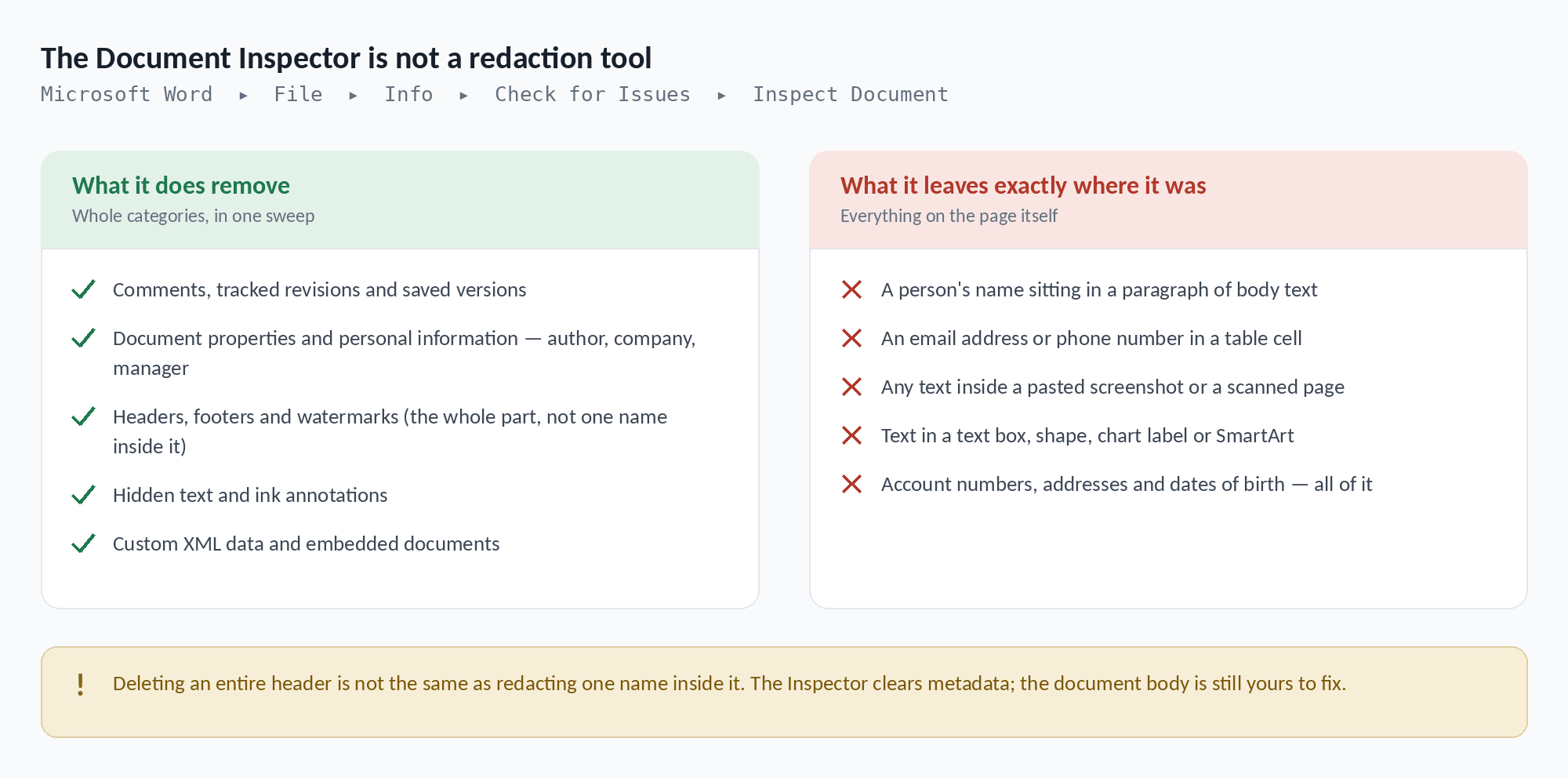
4. Run the Document Inspector
File ▸ Info ▸ Check for Issues ▸ Inspect Document, then
remove what it finds. This clears document properties and personal
information — author, company, manager, last-modified-by — along with
hidden text, ink annotations and custom XML. It is a metadata tool, not a
redaction tool: it will not remove a single name from the body of the
page.
The Document Inspector clears whole categories of metadata. Every
value on the page itself is still yours to remove.
5. Handle pictures, text boxes and charts yourself
A screenshot pasted into the document is an image. No amount of finding
and replacing will touch the text in it, and a black shape placed over an
image is still just a shape — crop the picture and re-insert it, or
replace it outright. The same applies to text boxes, chart labels and
SmartArt, which sit outside the main paragraph flow. If your document is
mostly scans, the
OCR redaction guide covers
what has to happen at the pixel level.
6. Read the saved copy back
Close the file, reopen the saved version, and use Ctrl+F to
search for each value you removed. Check the header and footer on more
than one page, open the comments pane, and look at
File ▸ Info for the author field. If anything survived,
you now know which step to repeat.
Where a .docx keeps a second copy
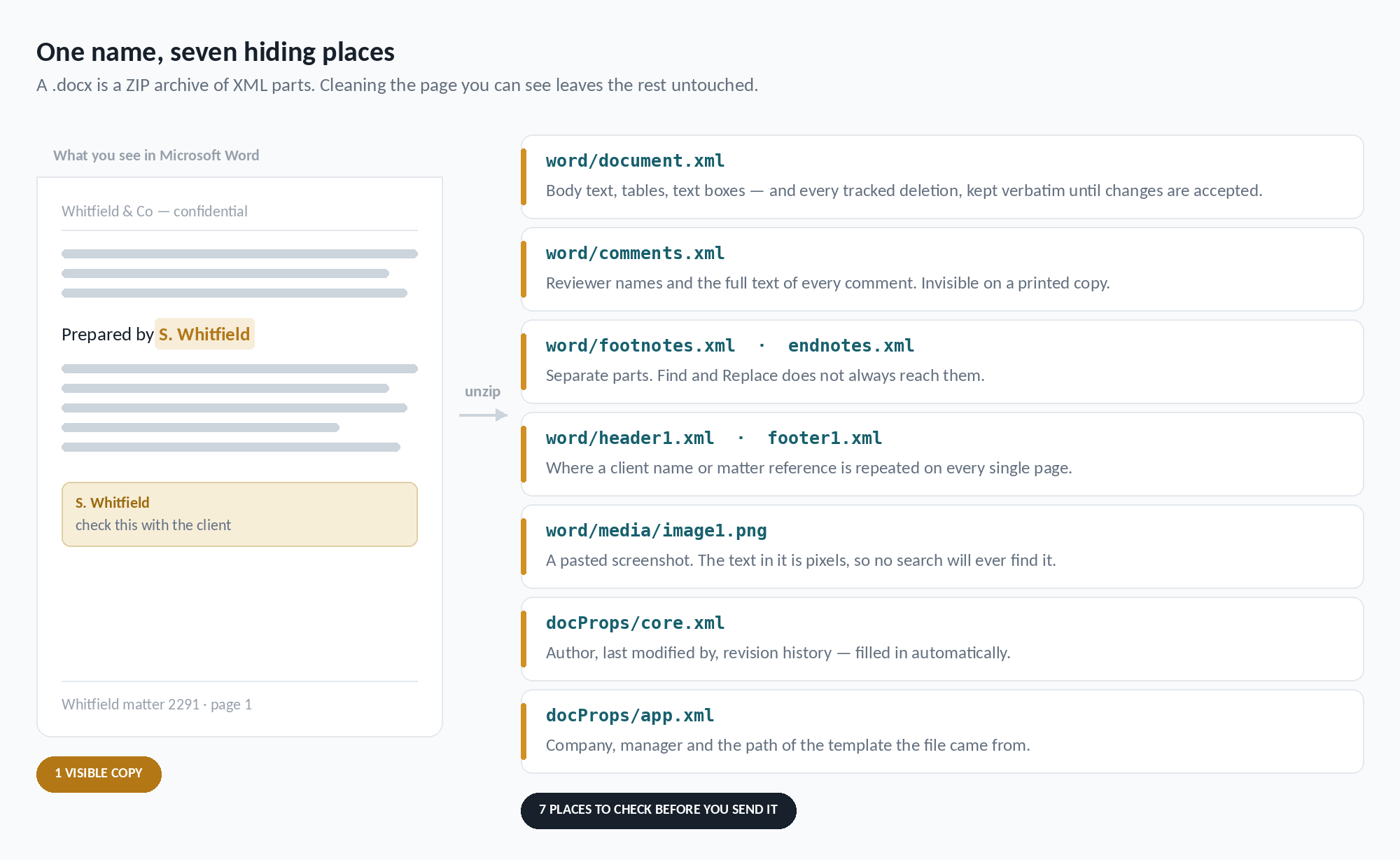
The reason the manual route takes six steps is that a .docx is not one
document. It is a ZIP archive of XML parts, and the page you are looking
at is only one of them. Clean the visible body text and there are still
six other places holding the same string.
Unzip a .docx and the same name can be sitting in seven different
parts. Six of them are invisible when you print the page.
Tracked changes. Deleted text is not gone; it is stored as a deletion revision inside document.xml and stays readable until changes are accepted.
Comments. Reviewer names and comment bodies live in their own part.
Headers, footers, footnotes and endnotes. Separate parts again — and typically where a client name or matter reference repeats on every page.
Document properties. Author, last-modified-by, company, manager and template path, filled in automatically and rarely looked at.
Embedded images. A pasted screenshot of an email thread is a picture as far as any text search is concerned.
Text boxes, shapes, chart labels and SmartArt. Stored outside the main paragraph flow.
The methods compared
Five ways to redact a Word document, and what each one actually leaves in
the file when you are done.
Method
What it removes
What survives
Still a .docx?
Black highlight or a shape
Nothing. It is formatting.
Every character, recoverable by anyone who opens the file.
Yes
Find and Replace
The exact strings you typed, in the body and usually headers and footers.
Comment text, images, and every variant you did not think of.
Yes
Accept changes + delete comments
Tracked deletions and comment threads.
Everything visible on the page.
Yes
Document Inspector
Metadata, revisions, hidden text, whole headers and footers.
Names, emails and numbers in the body text.
Yes
Export to PDF, redact in Acrobat Pro
The text under the marks, properly.
Nothing — but the layout is now fixed and it is no longer a Word file.
No
DokMine
Matches across body, headers, footnotes, comments, properties and embedded images, in one pass.
Whatever automated detection misses — which is why you still review it.
Yes
How DokMine redacts a Word document
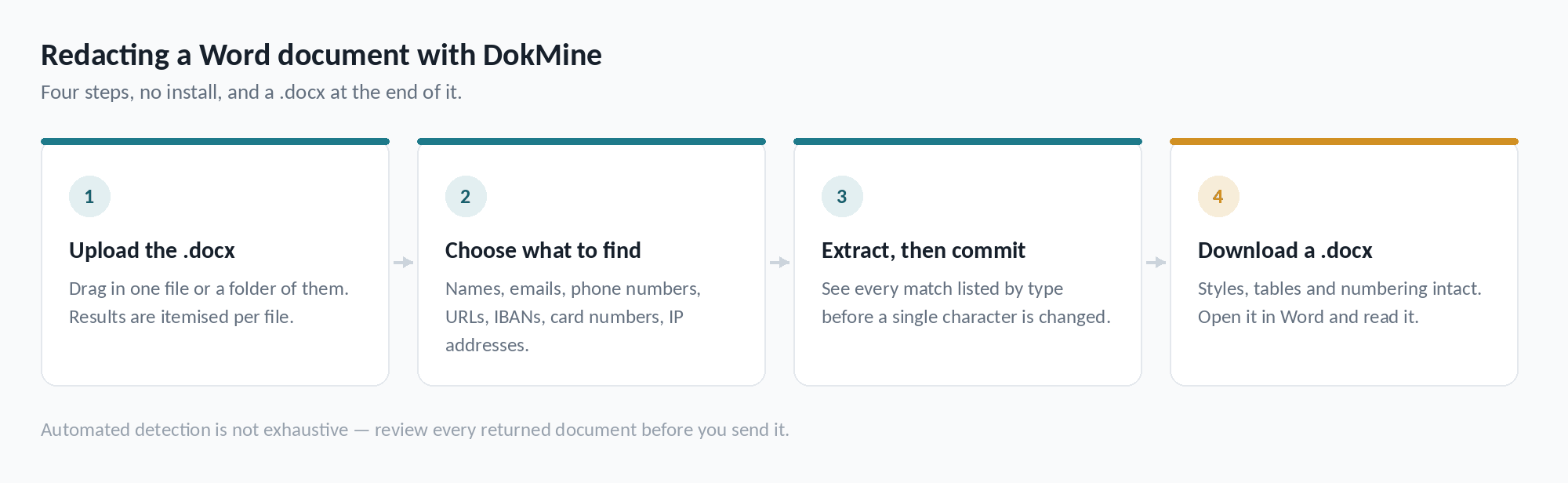
DokMine rewrites the document XML in place and returns a valid .docx.
Paragraph styles, tables, lists, numbering, section breaks and fonts
survive; nothing is flattened to plain text or converted to
PDF. Matches are either blacked out or
replaced with a consistent typed token such as [NAME_1], so
the document still reads properly and repeated mentions of the same
person stay traceable to each other.
The pass covers every part listed above at once, including OCR over
embedded images — so a name in a footnote, a reviewer's name on a
comment, and an email address inside a pasted screenshot are all handled
in the same run rather than in six separate manual steps.
Extraction runs before redaction, so you see every match listed by
type and by file before a single character is changed.
Where it will struggle
Person names are the hardest category in any document and the one most
likely to be missed or over-matched — a surname that is also a common
word, a name in a language the model handles poorly, an initial standing
alone. Text rendered inside a low-resolution or rotated screenshot may not
OCR cleanly. Unusual constructions, deeply nested content controls and
heavily customised templates can all hide text from a pass.
DokMine does not guarantee complete detection or removal. Review the
returned document — including its comments, tracked changes and
properties — before you send it.
Questions
Does Microsoft Word have a redaction tool?
No. No current version of Microsoft Word has a redaction command. Microsoft published a redaction add-in for Word 2007 that was never carried forward. The closest built-in tools are Find and Replace for the text and the Document Inspector for metadata, and neither is a redaction feature.
How do I redact a name in a Word document?
Replace every form of the name using Find and Replace (Ctrl+H), accept all tracked changes, delete all comments, run File ▸ Info ▸ Check for Issues ▸ Inspect Document to clear metadata, then remove or crop any picture containing the name. Reopen the saved file and search for the name again to confirm.
Is black highlighting enough to redact text in Word?
No. Highlighting and shapes are formatting, so the characters underneath are unchanged. Anyone can turn the highlight off, move the shape, or copy the page into a text editor and read the original. Exporting to PDF carries the same problem through.
Does the Document Inspector redact text in the document body?
No. It removes metadata, comments, revisions, hidden text, custom XML and whole headers, footers and watermarks. A name, email address or phone number in a paragraph on the page is untouched by it.
Can I redact a Word document without Adobe Acrobat?
Yes. Acrobat's Redact tool works on PDFs, so using it means converting the file and losing the editable Word version. DokMine edits the .docx itself and returns a .docx, so you never leave the format.
Do I get a .docx back, or a PDF?
A .docx. The document XML is edited in place, so styles, tables, headers, numbering and fonts are preserved and the file opens in Word exactly as before, minus the redacted values.
Does it handle tracked changes and comments?
Yes. Deleted text stored as a tracked-change revision and the contents of comments are both covered, since either can carry personal data that is invisible in a printed copy.
What about the author name in document properties?
Document metadata surfaces are redacted alongside the body, so an author or last-modified-by field does not survive the pass.
Can it find text inside a screenshot pasted into the document?
Yes. Images embedded in the document are opened, read with OCR and blacked out in the image data. If an image cannot be read, DokMine flags it rather than passing it silently.
Will it catch every name?
No, and no tool will. Names are inherently ambiguous, so treat the result as a first pass and review the document yourself before sharing it.
Other formats
The same engine, the same account — the hazards differ by format.
![Two Word documents side by side: on the left a name hidden under black highlighting, still readable when pasted into a text editor; on the right the same line redacted to a [NAME_1] token with nothing recoverable.](word-black-highlight-vs-redaction.png)